Add Object Storage Gateway To Ceph Cluster


In QuantaStor, the "Add Object Gateway" feature is used to configure and deploy an S3-compatible gateway within the QuantaStor storage management system.
An Object gateway acts as an intermediary between applications or clients that use the Amazon S3 API (Simple Storage Service) and the underlying storage infrastructure managed by QuantaStor. It enables QuantaStor to provide S3-compatible object storage services, allowing applications to interact with the storage system using the widely adopted S3 API.
The purpose of the "Add Object Gateway" function is to simplify the integration of QuantaStor with applications or services that rely on the S3 API for object storage. By adding an Object gateway, QuantaStor can emulate the behavior and functionality of Amazon S3, making it compatible with S3-based applications and tools.
Select the storage cluster nodes to deploy new Object Gateway service instances onto. Users will be able to access their object storage buckets via these nodes. It is recommended to deploy Object Gateways on all nodes for best performance.
When adding an Object gateway in QuantaStor, you typically configure settings such as:
- Endpoint Configuration: Specify the hostname or IP address and port for the Object gateway endpoint.
- Authentication and Access Control: Set up authentication mechanisms, access keys, and policies to control access to the Object gateway.
- Bucket Configuration: Create and manage Object buckets, which serve as logical containers for storing objects.
- Object Storage Features: Configure features such as versioning, lifecycle management, server-side encryption, and access logging for the Object gateway.
Once the Object gateway is added and configured, applications that use the S3 API can interact with the QuantaStor storage system as if it were an S3-compatible object storage service.
Adding an Object gateway in QuantaStor allows you to leverage the benefits of the S3 ecosystem and integrate with a wide range of applications, tools, and services that support the S3 API. It provides flexibility and compatibility for S3-based workflows while using QuantaStor as the underlying storage infrastructure.
It's important to note that the specific features and configuration options available for the Object gateway in QuantaStor may vary depending on the version of QuantaStor and the supported S3 API versions.
Navigation: Scale-out Storage Configuration --> Scale-out Storage Clusters --> Service Management --> Add Object Gateway (toolbar)
Add the signed SSL certificate for FQDN (fully qualified domain name) to Object Gateway.
Note:
- Please ensure that the proper DNS records have been created for the FQDN and that they are resolvable by all nodes and end-user devices that will be accessing the Object Gateway.
- SSL certificates should be signed by your CA (Certificate Authority) provider to be considered valid.
- SSL certificates must be properly concatenated to ensure the full chain of trust is recognized. Please refer to this guide.
There are two ways to add signed SSL to Object Gateway.
- While creating the Object Gateway and Load Balancer.
- Attach the SSL certificate .pem file.
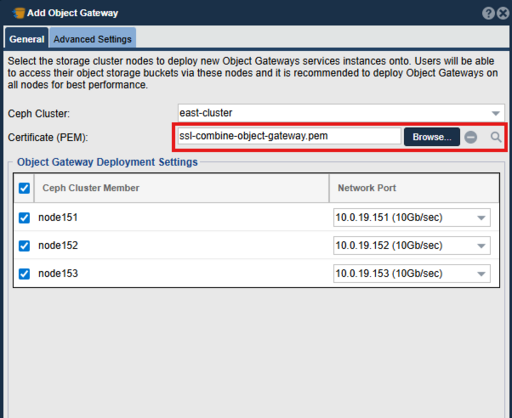
Attach the SSL certificate .pem file.
- Attach the SSL certificate .pem file.
- If the Object Gateway and Load Balancer have already been created, use the Certificates section to upload and apply the certificate.
- Add the certificate to Security > Certificates > Add Template (toolbar).
- Apply the certificate to HA-Proxy by going to Security > Certificates > Update (toolbar) > Select the uploaded certificated and select 'HA-Proxy' > Select Storage Systems
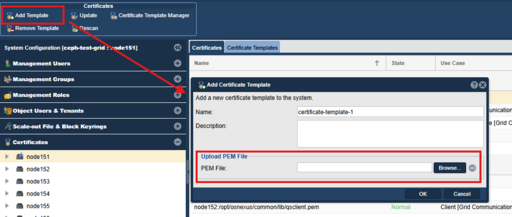
Add SSL certificate template. 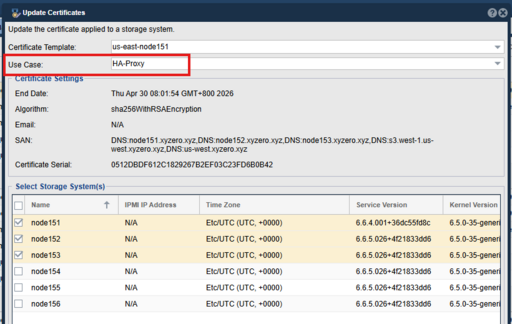
Apply SSL certificate template to HA-Proxy service.


Once the signed SSL certificate is uploaded and applied to HAProxy, you must add all FQDNs or hostnames to the Ceph Realm Zone group.

Browser Test: Open a new browser window (or clear your cache) and navigate to your Object Gateway URL (Ex: https://node1.domain.com:8580). Click the "lock" icon in the address bar to verify the certificate details.